Blog

  • Best Laptop for Students Under Budget in 2026

    Best Laptop for Students Under Budget in 2026

    Student carrying a laptop on campus

    Thursday night. Phone buzzing. Usman. First year. Classes in ten days. And — his words, not mine — “bhai, laptop lena hai, abbu ne paison ki saving ki hui hai.” Saved money. Months of it. The kind you do not throw at a shiny box because a shopkeeper smiled at you.

    My mistake. Quick version. I bought heavy. Heavy felt solid. Solid felt like value — my logic, age eighteen, very clever. Also a hard drive. Not an SSD. Shopkeeper said storage bigger. I heard bigger. Stopped listening. Done. Every morning after that? Waiting. Waiting for the thing to wake up. Like it was deciding whether to bother. Classes? Brick in the bag. Charger? Another brick. Basically a textbook that also got hot. Second semester my shoulder had opinions about that laptop. Strong opinions. So Saturday, walking into the market with Usman, one rule. Just one. Not impressive. Useful. His weeks. His actual weeks. That’s the machine we buy.
    Laptop on a study desk with textbooks

    Before touching anything. Before the glowing keyboards. I stopped him. “Usman. Ruk. Ek sawal.” What do you actually do on it? Every week. Not someday-maybe. Every week. He blinked. Thought. “Essays. PDFs. Browsing. Video classes. Presentation kabhi kabhi. Spreadsheet…” He trailed off. Shrugged. That. That is the light group. Most students, honestly, that’s them. I told him the others anyway — because his roommate would tell him, his cousin would tell him, everyone tells you something in first year. Medium? Photo editing. Thora coding. Data work. Twenty tabs. Something else running behind. Heavy? Video editing. 3D. Engineering simulation. Games that need real power. Heavy costs more. A lot more. Processor stronger. Memory more. Graphics card separate. And — I grabbed his arm here, actually grabbed it — heavy wale, apne course ke senior se pooch ke lo. Kyun? Software. Exact software decides. Not the shopkeeper. Usman? Light. Clear light. That one answer. That one boring answer saved him more than any sale would have. Because now? No gaming power to pay for. Power he would never, ever use.

    Salesman arrived. Young. Friendly. Fast. Very fast. Flagship first. Obviously. Keyboard glowing like a wedding. Usman lit up — I saw it, his face changed — and I said, “Bhai, ek kaam karein. Us wale pe — haan, middle wale pe — document kholein. Browser. Video call. Teenon. Ek saath.” He did. It handled them. No drama. No freezing. Just… worked. “Lekin processor slow hai,” the salesman said. I looked at him. “Slow? Kis kaam ke liye? Essay ke liye?” Silence. Then a cough. Then he moved on to something else. Look. Processor. I keep it simple for Usman, because simple is true here. Mid-range. Current generation, previous generation, farq nahi parta itna. Documents khol lo. Video class chala lo. Presentation bana lo. Koi assignment is liye fail nahi hoti ke processor mid-range tha. Kabhi nahi. Balance. That is the word I kept saying. Balance. Fast processor, thori memory? Tabs kholo, sab ruk jata hai. Strong here. Weak there. Lopsided. Useless. Balanced machine? Roz acha lagta hai. Har roz. I made Usman repeat it. He laughed. “Balance.” He said it wrong first. “Bala…?” Then right. Good enough. He got it.

    Memory. RAM. My senior told me this, same market, three years ago, standing almost exactly where we stood. I told Usman his version. Memory matlab — kitni cheezein ek saath. Browser. Document. Video call. Teenon khule hon, sab smooth? Memory ka kaam. Kam memory? Switch karo, sab atak jata hai. Mud mein chalna. Jaisa… haan, waisa hi. Light kaam? Modest memory chalta hai. Medium kaam, multitasking zyada? Phir memory farq dalta hai. Tuesday morning. Paanch cheezein khuli. Tab pata chalta hai. Practical baat — the one I wanted him to keep — processor thora slow le lo, memory zyada le lo. Agar choose karna pare to. Smoothness memory se aati hai. Chip se kam. Aur ek sawal. Poochna. Pehle. “Memory baad mein upgrade ho sakti hai?” Kuch laptops mein haan. Kuch mein nahi. Sealed. Bas. That question decides — laptop tumhare saath barhe ga, ya wahin ruk jayega jahan khareeda tha.

    Phir. Non-negotiable. Maine ye lafz bola. Zor se. Non-negotiable. SSD. Hard drive nahi. Meri purani machine yaad dila di Usman ko. Subah subah. Button dabao. Wait karo. Aur wait karo. Files? Jaise post se aa rahi hon. Slow. Painful. SSD? Start tez. Apps khulte hain. Files aati hain. Roz ka farq. Har roz, not once a month. Size? Depends. Kya rakhte ho? Documents, PDFs — kuch nahi, jagah hi nahi lete. Photos, videos, games — bohat. Cloud use karte ho? External drive hai? To chota SSD chal jayega. Sab kuch laptop pe hi? To bara lo. Lekin — 2026 mein — sirf hard drive wala laptop? Agar avoid kar sako? Karo. Mat lo. Roz ki slowness. Choti si saving. Worth nahi. Bilkul nahi. Usman ne sar hilaya. Aise hilaya jaise ye sab pehle bhi jhela ho. Jhela tha, actually. Ghar ka purana computer. Same problem. Naam nahi pata tha. Ab pata hai.

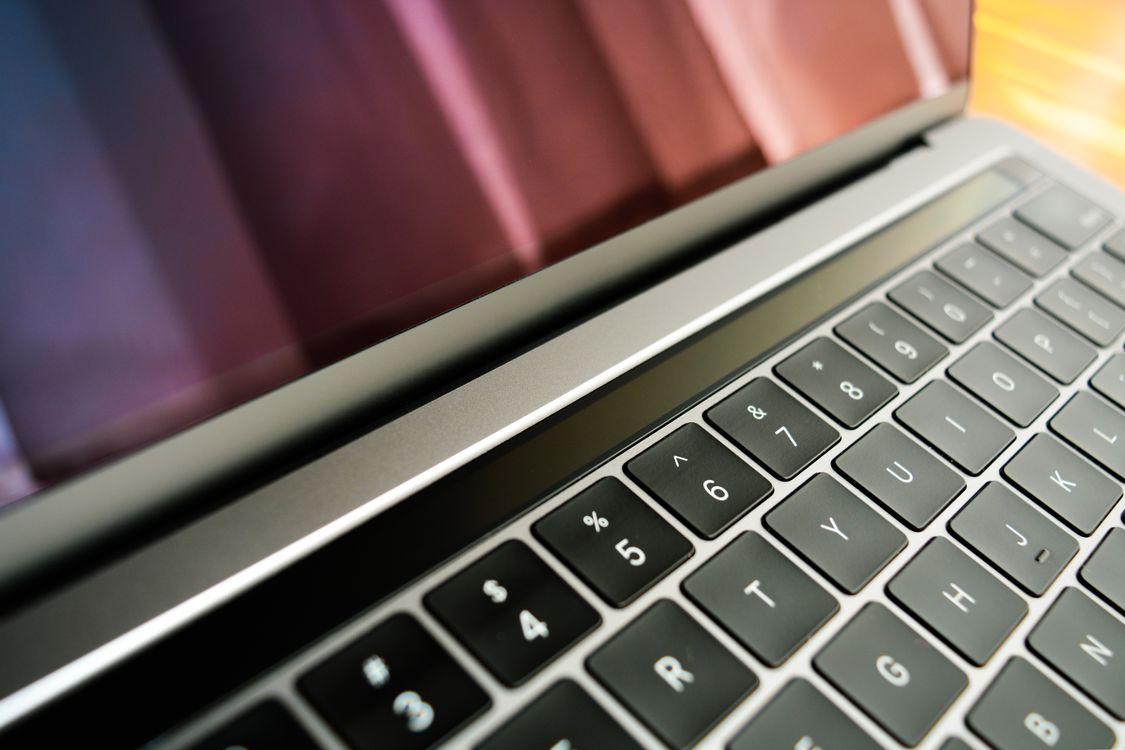
    Screen. Hum khare hue. Maine kaha — “Dekho. Card mat dekho. Screen dekho.” Us screen ko ghanton dekhna hai. Roz. Ghanton. Choti screen? Aankhein thak jati hain. Bhari laptop? Kamar. Middle. Beech ka size. Parhne likhne ke liye kafi. Uthane ke liye halka. Text sharp hai? Window ke paas roshni mein dikhta hai? Keyboard — type karo. Asli type. Paragraph. Do keys nahi. Paragraph. Ungliyan us keyboard pe rehne wali hain. Saalon. Phir hum ne poora bag uthaya. Charger ke saath. Kyun? Kyunke box pe jo weight likha hota hai — jhoot nahi, lekin adhoora hai. Asli weight? Bag mein. Charger ke saath. Wahi uthana hai roz. Flagship? Bhari. Charger ke saath? Aur bhari. Usman ne use neeche rakh diya. Chup chaap. Kisi ne kaha nahi. Khud hi.
    Laptop keyboard and screen close up

    Battery. Salesman ne number bola. Bara number. Usman ne meri taraf dekha. Maine sar hilaya. Halka sa. Bahar ja ke bataya. Advertised battery? Ideal conditions. Lab. Asli student day? Wi-Fi on. Video calls peeche peeche. Brightness up — classroom ki bari windows, roshni hi roshni. Advertised hours? Best case. Wada nahi. Lambi battery claim karne wala bhi? Normal din nikal de ga. Solid din. Wohi chahiye. Better test? Koi student jo wahi model use karta ho. Us se poocho. Kitni chalti hai classes mein? Asli jawab. Ad se behtar. Hamesha. Aur charger ka type. Check karo. USB-C standard? Replace karna asaan. Share karna asaan. Koi rare charger? Sirf ek shop pe mile? Exam week mein charger kharab ho — phir? Choti detail. Exam-week detail.

    Sunday. Doosri shop. Doosra salesman. Wohi tricks. Plus accessories. Bag. Mouse. Software bundle. Extended warranty — itni tez samjhaya ke main bhi follow nahi kar saka. Aur main koshish kar raha tha. Yahan budget marta hai. Chup chaap. To maine skip list zor se boli. Shop mein. Sab ke saamne. Parwah nahi. “Gaming graphics card? Skip.” — salesman ne munh khola, maine haath uthaya — “Ruko. Course ko chahiye? Hobby ko? Nahi? To skip. Wazan barhata hai. Garmi. Battery khata hai.” Highest resolution screen? “Skip. Photo video professionally edit karte ho? Nahi? To normal clear screen kafi hai. Essays ke liye, reading ke liye.” Accessories? “Abhi nahi. Laptop pehle. Baad mein jo chahiye, wohi lo.” Newest model? “Pichle saal wala sasta hai? Kaam poora karta hai? To wohi lo. Pichle saal ka acha laptop, is saal ka best student deal hota hai aksar.” Skip karna matlab kharab laptop lena nahi hai. Matlab? Paisa wahan lagao jahan roz kaam aaye. SSD. Memory kafi. Keyboard comfortable. Build jo backpack mein survive kare.

    Bus pe ghar wapas. Usman ne woh sawal poocha. Jiska main wait kar raha tha. “Naya, refurbished, ya second-hand?” Acha sawal. Uske abbu ne subah wohi poocha tha. Naya budget laptop? Full warranty. Fresh battery. Sukoon. Asli sukoon. Certified refurbished? Trusted seller se? To usi paison mein behtar machine mil sakti hai. Lekin — lekin — warranty asli ho. Return policy asli ho. Use kar sako, woh wali. Random second-hand? Unknown seller? Sab se risky. Battery health? Pata nahi. Chupe faults? Das minute mein nahi dikhte. Refurbished lo to? Teen cheezein. Teen. Koi compromise nahi. Warranty kitni lambi? Return window kitni? Battery health report hai? Koi ek missing? Vague? Chalo. Walk away. Paisa bachana is se behtar nahi ke laptop exam week mein mar jaye. Usman ne teenon phone mein likh li. Maine dekha. Likhte hue. Good. Acha laga.

    Monday. Decision day. Checklist. Das minute ki. Lecture nahi. Hum ne shop mein khare ho ke ki. Asli. Paisa move hone se pehle. Course ka software kholo. Ya seller se kaho similar workload demo kare. Sirf desktop dekh ke mat lo, woh to hamesha sundar lagta hai. Keyboard pe paragraph type karo. Comfortable? Ports check karo. USB chahiye? HDMI? Headphone jack, classes ke liye? Wi-Fi aur webcam — asli video call mein check karo. Classes inhi pe chalti hain. Weak webcam? Har hafte sharmindagi. Warranty confirm karo. Kitni lambi. Kya cover karti hai. Service kahan mile gi. Return policy — likh ke lo. Written. Agar kuch din use ke baad suit na kare to? Total price. Sirf laptop nahi. Charger. Bag. Software jo asli mein chahiye. Sab mila ke. Das minute. Sirf das. Lekin ye das minute? Mahinon ka regret rok lete hain. Shop window mein acha lagne wala laptop, keyboard kharab, webcam weak — roz tang kare ga. Roz. Daily tang — student ke liye sab se mehngi cheez hai.

    Student working on a laptop in a library

    Wapas chalte hue. Usman ne chaar aur sawal pooche. Wohi chaar. Jo sab poochte hain. Maine waise hi jawab diye. Waise hi, jaise wahan diye the. Chromebook? Kafi hai? “Ho sakta hai. Agar kaam web pe hai. Documents, browsing, video classes, cloud apps. Lekin course ko Windows ya Mac software chahiye jo Chromebook pe na chale? To nahi. Course software list pehle check karo. Baad mein nahi.” Laptop ya tablet? “Laptop. Main device ke liye, safe. Lambi essays type karni hain. Files manage karni hain. Course software chalana hai. Sab laptop pe asaan. Tablet? Doosra device, reading ke liye, notes ke liye — lovely. Akela? Kamzor.” Kitne saal chalega? “Normal care se? Degree poori. Padded bag. Updates. Keyboard pe khana nahi — ye bolte hue maine uski shirt dekhi. Crumbs. Usi waqt. Woh hass para. Backup. Regular. Back up your work regularly, so a hardware fault does not become a lost assignment.” Sale ka wait karein? “Sale se faida ho sakta hai. Lekin mahinon wait? Classes abhi hain? To mat karo. Normal price pe acha laptop, achi tarah use karo — deadlines ke baad aane wale perfect deal se behtar hai.” Usman chup ho gaya. Thori der. Phir bola. “Okay. Middle wala le raha hoon.” Matlab? Pehli shop wala balanced machine. Document, browser, video call — teenon ek saath, bina drama ke.
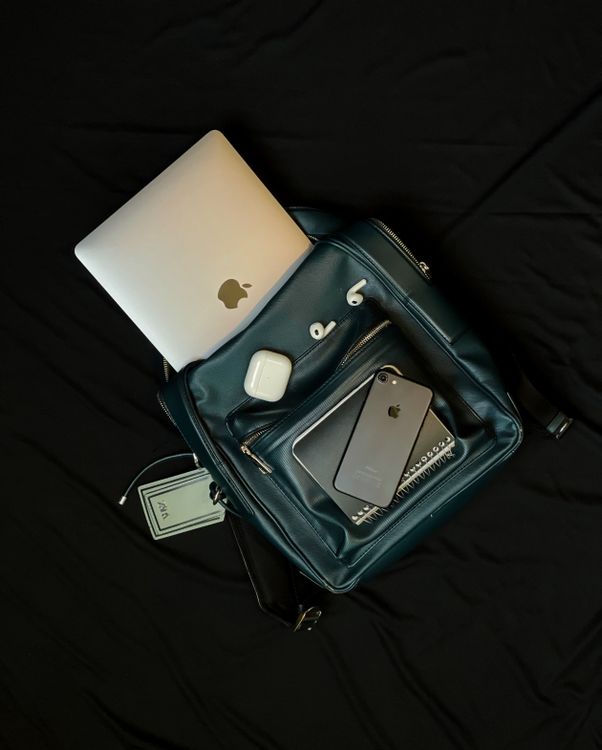
    Laptop bag and accessories for students

    To poori baat. Market mein khare hue kisi ko main yehi kehta. Sab se mehnga? Nahi. Sab se sasta? Nahi. Balanced. Wohi. SSD ho. Memory tumhare asli multitasking ke liye kafi ho. Keyboard comfortable. Screen aankhon ko theek lage. Battery classes ka din nikal de. Warranty pe bharosa ho. Course se shuru karo. Gaming power jo nahi chahiye, skip karo. Machine haath mein pakar ke check karo. Khud. Prices? Current. Trusted sellers se compare karo, khareedne se pehle. Aur — main yahan model names nahi de raha. Prices nahi de raha. Jaan ke. Reason hai. Models badalte hain. Prices badalte hain. Mahine se, shehar se, shop se. Aaj diya hua naam? Tum shop pohcho, tab tak galat ho sakta hai. Confident naam ke saath galat advice? Naam na dene se bura hai. Apni asli student life ke hisab se lo. Jo advertisement sab se impressive hai, us ke hisab se nahi. Roz uthana hai. Ghanton type karna hai. Assignments us pe bharosa karni hain. Us reality ke liye choose karo. Budget… budget khud hi, more or less, sambhal jata hai.

    Conclusion

    Monday dopahar. Usman ne balanced wala le liya. Mid-range processor. Memory kafi. SSD. Screen jo us ne khud dekhi thi. Keyboard jo us ne khud type kiya tha. Charger jo kahin se bhi replace ho jayega. Bus se text aaya. Ghar jaate hue. Ek line. “It feels like mine already.” Maine phone dekha. Phir market ki taraf dekha. Specification card? Salesman ka number? Woh sab… woh sab to peeche reh gaya tha. Shop mein. Jo reh gaya, woh ye tha: ek larka, ek bag, ek laptop jo us ne khud check kiya tha, paison se jo carefully save hue the, carefully spend hue. Bas.
  • How to Use ChatGPT for Study Notes

    How to Use ChatGPT for Study Notes

    Student writing study notes beside a laptop

    Dear Zain,

    You asked me last Sunday, on the phone, in that slightly panicked voice you get before a new term, whether the seniors were right that ChatGPT does your notes for you now, and whether using it would get you in trouble. I said I would write it down properly instead of giving you a rushed answer, because the rushed answer is how people end up doing this wrong. So here it is. Not a manual. A week of mine, more or less, with the parts I got wrong left in, because the wrong parts are the useful ones.

    Sunday night, first. Biology chapter. Cell respiration — you know the diagrams, beans with bits inside, all of them looking the same after ten minutes. Quiz on Tuesday. And what did I do? Did I read it? No. Of course not. I typed “summarise cell respiration simply” — typed it fast, like speed would make it less lazy — and out came this smooth, tidy thing. Pasted it. Bold heading on top. As if bold made it mine. It didn’t. Obviously it didn’t.

    Monday morning. Bus. I read my beautiful summary twice. Felt ready. Felt, honestly, a bit smug. Then class. Teacher, offhand, not even a test question, just: why does anaerobic respiration give less energy? And my mouth opened. Nothing. Not one answer that wasn’t a sentence from the summary. And the sentence? Gone. Just — gone, the second I needed it. Bilal leaned over. Whispered: “You look like someone deleted your brain.” Yeah. Accurate. Painfully accurate.

    That bus ride home was the actual lesson, not the chapter. Reading someone else’s summary, even a machine’s summary, is not studying. More like watching someone else swim and calling it practice. I knew every stroke by name. Put me in the water, though, and I would have sunk on the spot — all that watching had taught my eyes, not my arms. So that same Monday night, after everyone else had gone to sleep and the house finally went quiet, I cleared a corner of the kitchen table, propped the chapter up against a cereal box so it would stay open, left my phone charging in the other room, boiled the kettle twice because the first cup went cold while I was still on page one, and read the whole thing through slowly, underlining as I went. My notes from that read are embarrassing to look at now. Half a page. Abbreviations I invented on the spot. One line that just says “ATP = energy money?? check this” with two question marks, because I was not sure and I wrote down that I was not sure, which turned out to be the smartest thing on the page.

    Highlighted textbook for revision

    Tuesday. The tool finally earned its place. Only after my own scribble existed — that matters, that order, scribble first, chat second, I keep coming back to it. So. I pasted the rough half-page in. I told it to break the mess into headed sections. Leave my wording and facts alone, even the half-wrong bits. A two-line recap after each chunk, nothing more. And add nothing new. Nothing. New. I typed that twice. Twice. Because the first time — the first time! — it slipped in this confident extra detail about a stage of respiration. Sounded right. Wasn’t in my notes at all. Not one word of it was mine. I caught it only because I checked. Line by line. Scribble in one hand, screen in the other. Names. Steps. All of it. Tedious? Yes. Boring? Extremely. But that checking is the job. The whole job, really. Textbook beats chat. Lecture slides beat chat. Every time. And if something in the organised version looks new — cut it. No debate.

    Also Tuesday, a small thing that saved my Wednesday: the organised version came back longer than my original notes, which is backwards, so I told it to halve it, exam points only. Short notes get opened again. Long notes get admired once and then abandoned, usually by Thursday, usually by everyone, including me.

    Wednesday. Apology in advance — I am about to sound like a teacher. Sorry. Not sorry. Flashcards. Twenty of them. Made them from the cleaned-up notes. Question one side. Short answer the other. Definitions. Differences. Causes. Not trivia — trivia is a trap, it feels like work and teaches nothing. And then? Roof. Evening. Washing drying around me. Saying each answer out loud before flipping. Out loud. Not in my head. In my head, nodding feels like knowing — remember Monday? I “knew” everything on Monday. Hah. Neighbour’s kid stared at me. Fair. I was on a roof talking to cards about mitochondria. But the three I got wrong — out loud, properly wrong, no fudging — those three? Those are the three I actually learned that night. Getting them wrong showed me the holes. Funny how that works.

    Revision flashcards on a study desk

    Then the quiz version. Same idea, lazier evening version. Ask the chat to quiz me. One question. Wait for my answer. Then the next. Tell me why when I’m wrong. And when it gave me an answer early — it did, twice — I typed, literally typed: “wait, I haven’t answered yet.” Rude? To a machine? Maybe. Worked perfectly, though.

    Oh, wait. Skipped something. The explaining bit. Thursday’s chapter — history, causes of the French Revolution — broke me. One paragraph. So dense. Read it four times. Understood it less each time. Less! How does that even happen? Anyway. Pasted just that paragraph in. Asked for plain words. Like I was fifteen. One everyday example. Then — trick, the real one — asked a second time. Not what it was. Why it mattered. Why. Second answer unlocked it. First one hadn’t. Weird. Then I closed the chat. Properly closed it. Not minimised. Closed. Wrote the idea in my own words on the back of an old electricity bill. Nearest paper. That’s all. And if I couldn’t have done that? Then I didn’t get it. Simple test. Then I’d ask about the exact stuck bit. Not the whole topic again. Never the whole topic again — that just drowns you in another fluent wall of text you’ll forget by morning.

    Student thinking through a study problem

    Thursday also gave me the study plan story. Shorter. Sadder. I’d drawn up a perfect week. Hardest subject first. Hour on, break, repeat. Every evening accounted for. Beautiful. Dead by Thursday. Why? Family dinner. Forgotten. Cricket match. Promised. My perfect plan had room for neither. So I abandoned the whole thing. All of it. Instead of adjusting it — just adjusting one evening! — I threw it away. Classic me.

    Next week, different. Gave the chat my real list. Real subjects. Two real exam dates. Hours I honestly had. Not wished I had. Honestly had. Asked for a simple week. Hardest first. Short break every hour. And one evening — deliberately — left empty. Not a treat. A buffer. Because something always goes wrong midweek. Always. And the buffer stops one bad day eating the whole plan. Then I moved things around myself. Because a machine plan doesn’t know about your family dinners. Only you do. Only you.

    Weekly study planner with tasks

    Friday. The checking story. Wish it weren’t true. It is. Physics notes. Motion equations. Chat gave me a formula. Sign flipped. Just one sign. Plus a reference — paper, author, journal, year, everything, extremely real-sounding. Something nagged me. The author’s name. Just… off. Couldn’t say why. So that evening — library catalogue. Looked it up. The paper? Didn’t exist. Not under that name. Not anywhere. Gone. Made up. Whole thing, invented, delivered with total confidence.

    That cold feeling. Stomach-drop feeling. That’s why there’s now a little “to check” corner on every page of mine. Every page. Anything that matters for a mark — date, definition, formula, law, number — checked. Book. Slides. Source I trust. Before it goes into final notes. Before. Unsure? Ask a teacher. Ask a classmate. Not wasted time. Studying. Just the unglamorous half of it. The half nobody posts about.

    And the rules. Since you asked. And yes, I asked too — wasn’t sure either. Friday, after class. Went up to my teacher. Rehearsed it three times in the corridor. Three times! Then said it: “Miss, is it okay if I use ChatGPT to organise my own notes and quiz myself, but I write everything myself first?” She said yes. Fine. And the line? Whether the thinking happened in my head. That’s it. That’s the line.

    So: organising notes you wrote — fine. Getting a concept explained — fine. Flashcards from your own material — fine. Grammar checks — fine. Planning your week — fine. In most colleges, anyway. Handing in machine-written work as yours? Not fine. Copying a summary, pretending you read the chapter? Not fine. Using it in a closed-book exam? Definitely not fine. And not just rules. Deeper than rules. If you can’t explain what you submitted — you haven’t learned it. Whatever mark it gets. Whatever. Rules differ college to college, so unsure? Ask. Ten seconds of awkward. Beats a serious problem later. I mean that. Really mean it.

    Saturday, then. The whole thing in miniature. You asked for something you could actually try. I promised no timetable. So — an evening. Not a schedule. An evening. Ten minutes. Chapter. Pen. Chat closed. Rough notes only. Then five minutes. Getting those notes tidied by the chat. Checking the tidy version against your rough one. Boring bit. Important bit. Same bit, somehow. Then ten minutes. Quizzed. One question, then silence until I answered. Me muttering the answers to an empty room. No peeking. Feeling slightly foolish — good, that means it’s working, foolish is the signal. Then five minutes. Writing down what you got wrong. Reading just those bits again. Just those. That’s it. Reading, writing, recall — yours. Tidying and testing — borrowed. First study evening I ever finished feeling like I knew something. Not feeling like I’d produced something. Knew something. Different feeling entirely.

    You also asked me — your words, your texts, I kept the messages — four things. Is it cheating? Can it replace the textbook? What if it gives a wrong answer? How do you stop just copying? Okay. One by one. Cheating: not the way I’ve described it here. Organising your own notes, explaining things, quizzing yourself — yes. Submitting its work as yours? Copying instead of reading? That’s cheating. College rules are the final word. Full stop. Textbook: no. Tried it. Briefly. Busy week. Went badly. It explains, it summarises, but it also invents — and it can’t replace the full argument, the examples, the practice problems. Use it next to the book. Not instead of it. Catch yourself opening the chat before the book? Warning sign. Was mine. Wrong answers: check them. That’s the whole answer. Check the important facts — book, slides, never trust one chat answer for exam material, keep the “to check” list. Wrong answer isn’t the disaster. Uncaught one is. Copying: read first. Scribble second. Chat third. Catch yourself copying without thinking — and you will, we all do — close the chat, put the phone face-down, and try explaining the idea to the wall in whatever half-formed words come out first, before you let yourself look at anything again. Feels slower. For about a week, it is slower. Then? Faster than copying ever was. Because you stop relearning the same chapter four times. Four times! No more.

    So, Zain. Boring jobs? Give them to it. Tidying. Explaining. Quizzing. Flashcards. Real learning? Keep that. Yours. Read first. Write your own rough mess. Let the machine organise and test. Check everything that matters. Teacher, when the line feels blurry — ask. Try that Saturday-evening shape on your next chapter. Finish it understanding the topic better than when you started? Then you’re doing it right. Only test that matters. Only one.

    Write back. Tell me how the first week goes. And — do not. Under any circumstances. Paste a summary into a document and call it revision. You know why now. You really do.

    Yours,

    Your cousin

    Conclusion

    ChatGPT, at its best? Helper. For the slow, boring parts. Tidying messy notes. Untangling a dense paragraph. Making flashcards. Asking quiz questions. Understanding? That stays with you. Has to. Read the chapter yourself first. Scribble your own rough notes. Let the tool organise and test you. Check every fact that counts. Keep the honest line clear. Try the thirty-minute shape — ten reading and writing, five organising and checking, ten quizzing out loud, five fixing what you missed — and judge it by one thing only. One thing. Do you finish knowing the topic better than when you began? Yes? Then it worked.

  • Best Free AI Image Generator Tools in 2026

    Best Free AI Image Generator Tools in 2026

    Digital artist creating AI-style artwork on a tablet

    The poster was already up before anyone told me. Not online, either, a real printed thing, taped to a noticeboard, and it said GRAND OPNEING in big cheerful letters, and I stood there reading it twice because my brain kept autocorrecting it to what it was supposed to say. A friend eventually messaged me, very politely, and I took it down, and that was the afternoon I stopped trusting any image tool with words in it. Which is a strange place to start a guide to image tools, I know, but honestly that poster explains more about this whole topic than any feature list, because every one of these tools will hand you something beautiful with one stupid flaw hiding in it, and the flaw is always the part you didn’t check.

    Anyway. The poster came from Ideogram, or rather, it came from me not understanding Ideogram yet. See, most image tools are terrible with text, genuinely terrible, they will spell things with total confidence and get them wrong, and Ideogram is the one exception I have found, the one that can actually manage a few readable words, a shop sign, a poster headline, a book cover title. Two or three words, that’s the sweet spot. I went back to it later for a book cover, just the title, nothing else, and it got it right on the second try, which after the poster felt like a small miracle. But a full sentence? A slogan with punctuation? No. It melts into alphabet soup like everything else, and I don’t care how good a tool claims to be, if you ask it for a paragraph inside a picture you are asking for trouble. Read every letter. Every single one. Even when you’re sure.

    That poster night was not my first disaster, though. The first one was quieter. I needed one image, one, for a blog post I had already finished writing, told myself five minutes, and three hours later I was still at my desk with cold tea and a cat that appeared to have a hand growing out of its shoulder. The cat came from Microsoft’s Image Creator, inside Designer and Copilot, which is the tool I open first now, most days, because it is the least fussy thing I have used. Sign in with a Microsoft account, type, and it gives you several images at once, and that matters more than it sounds, because choosing the best of four is a completely different feeling from staring at one weird result and trying to talk yourself into it being fine.

    But that first night I typed “a cat” and got the most average cat imaginable, and then I typed slightly different versions of “a cat” about twenty times, because I hadn’t yet learned the only lesson that actually matters with prompts, which is that the tool doesn’t understand your sentence, it guesses, and it fills in every gap you leave with its own choices, and its choices are not yours. So you have to give it the details yourself. Not fancy language, just: what is it, exactly, a ginger cat, not a cat. Where is it, a sunny windowsill, not nowhere, because no setting gets you a cat floating in beige nothingness, and I have generated that, more than once, I wish I hadn’t. What style, a real photo look, an illustration, watercolour, pick one, because if you don’t pick, it picks. And what kind of light and mood, soft morning light, calm, because that changes the whole feeling of the same scene, and that was the last piece I figured out, months in, which tells you something about how I learn things.

    Art supplies and colour palette for illustration

    Oh, and the cat with the hand. Faces and hands. That’s the other thing nobody warns you about properly. Hands have so many possible positions that the pattern just goes blurry, and eyes end up looking in two directions at once, and at thumbnail size you will miss all of it, your eye slides right past. My proof is a thumbnail I put up one Tuesday without a second look. Small, it was perfect. A reader opened it properly that evening and messaged me about the hand — six fingers, plain as day, on a character I had been chatting with Gemini about for the post itself. That chat is the appeal, really: you are already mid-conversation, you ask for a picture, you ask for a tweak, you never leave the tab, and brainstorming a look for something feels effortless. Effortless is the trap, though. But the thumbnail lied. So now, anything that is going to be published gets opened at full size first, and I look at it properly, hands, faces, background corners where melted objects hide, the whole thing, about thirty seconds per image, which is nothing compared to the embarrassment it saves. The background, by the way, is where the weird stuff lives. You check the face, you check the hands, and then there’s an extra limb behind a chair that you only notice after publishing. Ask me how I know.

    Where was I. Right, Canva. The trouble with Canva is that it is already open. If your slides and your social posts live there, then of course the generator lives there too, tucked into the same sidebar, and walking away from that convenience feels ridiculous. Picture, drag, your own text on top, export — no downloads in between, no colour shift between apps, no friction at all. Friction, it turns out, was doing me a favour. The catch, and there is always a catch, is that the free plan only gives you a limited number of generations, and I burned through mine in a single afternoon making test images of a reading nook I never used, not once, not for anything. So now I save them for pictures I actually need, decorative illustrations, backgrounds, simple scenes, and here’s the trick I wish I’d known sooner: for anything with words on it, generate just the background with AI and add the text yourself in Canva, so the spelling and the font and the placement are yours, and nobody has to squint at a poster that says WELCMOE. Which, yes, also happened. Different poster. I don’t want to talk about it.

    Browsing generated images on a phone

    And then there’s the one I only open when money is involved, or a client might see the thing, or I just don’t want to lie awake wondering where an image was trained. Adobe Firefly. Adobe built it around licensed content, and they actually talk about commercial use in plain language instead of mumbling about it in terms and conditions, which makes it the safer choice for a website or a client project or anything that earns money, and the free tier is a monthly allowance, so I save up ideas and do them in one batch, list on paper next to me, very organised, very unlike me the rest of the time. The pictures are clean and professional and a bit formal, product-style scenes, tidy illustrations, less playful than the others, which is a plus for a business topic and a minus when I wanted something wild and got something fit for a corporate brochure. If rights matter to you, and they should once money is involved, read Firefly’s current terms before you publish, and keep a note of which tool made which image. I keep mine in the download folder now, after a month where I could not remember whether a header image came from Firefly or somewhere sketchier, and that month taught me more about record-keeping than any productivity article ever did.

    Oh, and one more thing about Firefly, I almost forgot, which is sort of the point of this whole guide: the terms change. Free plans change. A tool that was generous in January can quietly tighten up by June, and if you build a deadline around a free tier without checking, you will spend the morning of publication scrambling, which I have done, and I do not recommend it. Check the official site, not a blog post from last year. Including, if I’m honest, this one, eventually.

    Leonardo. Right. Leonardo is the one my more artistic friends kept recommending, and I finally opened it, saw about forty settings staring back at me, and closed the tab again. That was day one. The free tier runs on daily credits, there are more style presets than I knew what to do with, fantasy art, character designs, game-style illustrations, detailed scenes with actual atmosphere, and all of that is wonderful once you learn it, and completely overwhelming until you do. What finally worked was embarrassingly simple: one preset style, one simple prompt, change one setting at a time, stop when it looks good. For a story, a game project, a portfolio — anything where the art itself is the point — I would put up with the learning curve now. I would not have said that on day one, when I closed the tab. If you need one illustration for a post going out tomorrow morning, open something simpler and save yourself the tutorial spiral. I say this as someone who fell into the tutorial spiral.

    Blogger choosing images for a blog post

    So, if I had to sum it up without a spreadsheet, because I tried the spreadsheet version and it read like a spreadsheet: Microsoft’s is the generous, easy one for quick blog illustrations, and its weakness is text and faces going strange. Canva’s lives inside your design workflow, limited generations, save them for real needs, shines for social graphics. Firefly is the careful one, monthly allowance, less playful, more formal, the one I trust most when rights matter. Ideogram is the text specialist, daily limits, keep the words to a few and it will surprise you. Leonardo is the detailed-art one, daily credits, wonderful once you learn it, confusing until you do. Gemini is the quick-ideas one inside a chat, free tier with limits, and you must check faces and hands at full size. Knowing which weakness you can live with matters more than which feature list is longest, and I mean that, I picked tools by their weaknesses in the end, not their strengths, because every strength here is roughly the same and the weaknesses are what actually bite you.

    There are also places I simply do not use AI images, and I’m firmer about this now than I was at the start. Not as a real product photo, if you’re selling something, because the buyer deserves to see the actual thing they’re buying, not a prettier imaginary version of it. Not as a photo of a real person. Not as evidence that something happened, because that isn’t illustration any more, that’s fabrication with better lighting. Not to copy a living artist’s distinctive style and pass it off as your own, and not a trademarked character or logo in a commercial project without understanding the rights, because “the AI made it” is not a defence anyone will accept. For all of those, use a real photo, a licensed stock image, your own design, something true. I keep saying “illustration, not evidence” to myself ever since I saw a seller use an AI picture for a handmade item and watched the comments turn — people felt tricked, and honestly they were right to.

    A Few Questions I Keep Getting Asked, Answered Unevenly

    Are free AI image generators really free? Short answer, yes, but with strings attached that only show up when you need the tool most. You get a daily or monthly cap, or smaller downloads, or fewer styles, and the terms quietly move — I once planned a whole week’s posts around a tool that had tightened its free tier while I wasn’t looking, and spent a Monday morning redoing every header image. Read the official free plan page first. Not a review. The page itself.

    Can I put AI images on my blog or my channel? Usually, yes — with a “check first” attached. Commercial use is where tools split: Firefly is built for it, others are vaguer, and the answer can differ image by image. Boring advice, I know, but the alternative is a takedown notice after the post is already shared, and I would rather spend five minutes reading terms than a week undoing that.

    Why do AI images get hands and text wrong? Think about what the tool is actually doing: it is copying patterns from pictures, not learning bones or an alphabet. A hand can sit a hundred ways, so the pattern smears — six fingers, a thumb in the wrong place, eyes drifting apart. Letters are worse, because one wrong stroke ruins the whole word, and the model has no idea what “wrong” means. Skies are easy. A person holding a sign is not, which is why your landscape looks flawless and your poster looks like something from a strange dream.

    Should I say when an image is AI-made? Platforms increasingly want you to, and readers respect it even when they don’t ask. My rule now is simple: if someone could look at it and think it is a real photo, it gets a label. After the posters, that is self-preservation as much as honesty.

    Conclusion, or Whatever This Turned Into

    So which one should you actually open? It depends on the job, a frustrating answer but the honest one, and the one my first night taught me. Quick blog illustrations, start with Microsoft’s Image Creator or Canva. Commercial-style work where rights matter, look at Firefly and read the terms. Text inside the image, try Ideogram and keep the words short, and for heaven’s sake read every letter before you publish. Detailed art, give Leonardo a real afternoon, not ten minutes. And if you are already chatting with Gemini and want a quick idea, fine — just do not trust the thumbnail. Open it properly first.

    Posters and artwork displayed on a wall

    These tools will not turn you into a designer in a weekend. They did not do that for me, and I have spent months on them. What they will do is let you dress up an idea quickly and cheaply, which, for a blog post going out tomorrow, is often enough. So: made-up pictures for made-up scenes, real photos for real things, and one honest look at the full-size result before anyone else sees it. And if you ever print a poster, maybe read it twice. Trust me on that one.

  • How to Speed Up Windows 11 PC

    How to Speed Up Windows 11 PC

    Windows 11 laptop on a clean desk

    My laptop didn’t die on me. That would almost have been easier to explain. Instead it just got slower, week by week, until one morning before an online class it took so long to wake up that I missed the first ten minutes staring at a spinning circle. I clicked the browser. Nothing. Clicked again, and then two browsers opened at once and both crawled. The assignment I needed was in there somewhere, behind a wall of waiting.

    I spent the next evening poking around instead of studying, and what I found surprised me: there wasn’t one big thing wrong. There were about fifteen small things, all piled up — a chat app I hadn’t opened in months launching at boot, a drive so full Windows had nowhere to breathe, a driver update I’d postponed forever. None alone would have mattered. Together, they turned a decent laptop into a chore.

    What follows is mostly just the order I stumbled through that evening — I didn’t plan it, I kept getting sidetracked, and a couple of the “fixes” I tried first did nothing. Nothing here costs money except one optional hardware note near the end, and nothing asks you to download a “cleaner” or touch the registry. Years back a cleaner app wiped something it had no business touching, and I lost a weekend rebuilding the machine — I have not opened one since.

    And one warning from my own mess first: years ago I cleaned a laptop holding the only copy of my revision notes, and when the folder came back half-empty I spent the night digging through sent emails for an attached scrap. I hadn’t. So save what’s open, and copy anything that lives only on that machine to a USB stick or the cloud, before touching a setting.

    What Finally Made Me Restart It, After Weeks of Just Shutting the Lid

    I’ll admit I rolled my eyes at this one too — but I hadn’t actually restarted my laptop in weeks — I just shut the lid every night, which is sleep, not a restart, and sleep keeps all the half-stuck processes exactly where they were. My browser had been “open” for something like three weeks straight.

    A real restart — Start, then Power, then Restart, and actually waiting for it — cleared out temporary memory, killed a background process that had been chewing away quietly, and let a pending update finish. The desktop stopped feeling like wading through mud. Do this first, and give it a fair test. If you haven’t restarted in a month, this alone might help more than every other step combined, especially if you’re a tab hoarder like me.

    Cleaning a laptop to improve airflow

    Step 2: Stop Unnecessary Startup Apps

    After the restart, I opened Task Manager — right-click the Start button — and went to the Startup apps section, where I sat scrolling a list I barely recognised: a game launcher, a chat app from one project, two cloud tools fighting over one folder, updaters for dead software.

    I didn’t have a system for this, honestly. I just went down the list muttering “do I even use this?” — the game launcher went because I’d played that game once, and the chat app from one group project was still barging in every morning though that project ended ages ago. Switching something off just makes it wait until I click it.

    Two things I left strictly alone: my antivirus, and anything whose name I didn’t recognise. For the unknowns, I searched the exact name online first — one turned out to be a touchpad driver helper, exactly the kind of thing you don’t want to kill by accident. When in doubt, leave it on.

    Then I restarted again, and this was the moment the laptop actually felt different — the desktop usable in seconds instead of that long, grey, everything-loading-at-once stretch. On my older laptop, that alone justified the evening.

    Facing How Full My Drive Actually Was

    Checking the drive was the part I kept avoiding, and it was nearly full — Windows couldn’t make temporary files properly, updates kept stalling, and the culprits were embarrassing: recordings from a passed module, installers for replaced programs, game downloads kept “just in case” that I never reopened.

    My photos and documents, though — those I left alone, because deleting personal stuff in a panic at 1 a.m. is how you clear the wrong folder. Instead I went to Settings, then System, then Storage, turned on Storage Sense, and let the cleanup recommendations do their thing — temporary files, old update leftovers, stuff already in the Recycle Bin. That cleared a surprising amount. Then I looked at the biggest apps and got honest: a trial program I’d never opened, a duplicate tool, a game launcher for a game long gone. Those went.

    A technician friend told me to keep roughly a fifth of the main drive free, and I’ve stuck to that — on a small drive, move the big stuff onto an external drive rather than binning anything in a midnight rush, because the file you delete half-asleep is always the one you want next week.

    Backing up files to an external drive

    Step 4: Getting Rid of Programs I Never Open

    Step 3 was about space, but this one was sneakier, because a program you never open still does things behind your back. I opened Settings, then Apps, then Installed apps, sorted by size, and for each entry asked myself when I’d last used it; if I had to stop and think, that hesitation was the answer.

    I removed them one at a time, deliberately slowly, since bulk-deleting is how you bin the wrong thing — and whole categories I skipped on purpose: Microsoft stuff, anything from my laptop’s maker, anything security-related, anything whose name even sounded like a driver or system part. Afterwards the machine felt less busy, like fewer things were waking up behind my back.

    Updates I’d Been Dodging, and Drivers I Learned to Respect

    For longer than I’ll admit, every update prompt got the same answer — “remind me later” — partly laziness, partly fear an update would break something mid-assignment. So one evening I finally opened Settings, went to Windows Update, let it install what had waited weeks, and restarted.

    Drivers I handled more carefully, because I’d learned that lesson the hard way: a friend once grabbed a graphics driver from a random “driver updater” site and ended up with a screen that flickered for a week. So I stuck to the official routes — Windows Update, or my laptop maker’s support page. Those updater tools promise to find everything — in practice they find the wrong version, plus programs you never asked for. An out-of-date driver is an annoyance; the wrong driver cost my friend a week of flickering screens.

    Giving Up Some Pretty Animations So Windows Stopped Crawling

    Windows 11 looks lovely — transparency, animations, shadows — and on older hardware all of it costs something. A bare grey box wasn’t what I wanted either, so I dug out the appearance settings from the Start menu and settled halfway — fonts stayed smooth, since jagged text hurts my eyes after an hour, and the animations and see-through windows went off.

    I used it like that for a day before judging, because the first hour everything feels wrong just because it’s different. By the next evening I’d stopped noticing, and windows were snapping open instead of gliding open at half speed. If the plainer look bothers you, that same window switches everything back.

    Actually Looking at What Was Eating the Machine, Instead of Guessing

    Before touching anything else, I stopped guessing and watched for a minute — Task Manager open, Processes tab, sorted by CPU, then Memory, then Disk. That minute matters: if one app hogs resources while you’re not using it, that app is the problem, not Windows, and no settings fiddling elsewhere will fix it.

    In my case the culprits were ordinary. My browser, with far too many tabs, was the biggest one. Then a cloud sync tool uploading a huge folder at the worst moment. And once, an antivirus scan running while I edited video — bad timing. So I shut the tabs I wasn’t reading, told the big sync to wait until tomorrow, and let the scan finish before judging anything. And when one app keeps causing trouble week after week, I look in its own settings for a lighter mode first — or find something lighter — rather than guessing.

    Checking running apps on a Windows PC

    Taming the Browser, Which Was Quietly Eating Most of the Memory

    For me, and for most students and office workers I know, the browser is the heaviest app on the machine, full stop. Every tab costs memory, every extension a bit more. I didn’t switch browsers — I like mine — but I changed how I treat it, and the difference was bigger than I expected.

    Fewer than ten tabs open at a time, as a rule I actually try to keep now. Articles get bookmarked instead of sitting open for a week “to read later” — I never read them anyway, and they cost memory the whole time. Extensions I didn’t use got removed. And I made sure the browser’s memory-saving mode was on, the one that puts inactive tabs to sleep. On a machine with limited memory, this single habit changed how the whole laptop felt — unglamorous, but it worked.

    Step 9: Keep Security Software, but Keep It Sensible

    At some point that evening, I was tempted: just turn the antivirus off, see how fast things go. I’m glad I didn’t. A friend did exactly that last year, picked up something nasty within a week, and his machine ended up far slower than mine ever was — plus days spent changing passwords. Malware slows a PC far more than any security program, and it can steal your accounts on top.

    Windows Security, built into Windows 11, is honestly fine for most people, and lighter than its reputation suggests. A third-party antivirus is fine too — what matters is not running two at once, because they get in each other’s way. My routine now: one full scan when I remember, and otherwise I leave protection alone.

    The Fix That Might Cost Money: What Kind of Drive Is in There

    Upfront: this is the one step that might cost something — a main drive that is still a spinning hard drive can, alone, explain the slowness. Windows 11 really wants an SSD. It’s the single most transformative upgrade for an old laptop, and I say that as someone who resisted it for a year because it sounded like a hassle.

    To check, it’s Task Manager again — Performance, then Disk — and it’ll just say SSD or HDD. Mine said HDD for a year until a repair shop swapped in an SSD one Saturday morning, and the difference embarrassed every tweak before it. But that’s a shop job, not a 2 a.m. DIY job — and for most people, the software steps above are enough.

    The Shortcuts That Backfire

    The thing about websites promising a one-click fix that makes your old PC “like new” — I used to click on them, back when I was desperate, and every one wanted to install something first.

    Registry cleaners are the classic example. They promise to tidy up Windows, rarely help anything, and occasionally break a setting you actually needed. Then there are the “PC booster” downloads, which very often bundle ads, trials, or software you never asked for — the very clutter you’re trying to remove. Driver updater tools belong in the same category: they can install the wrong driver, and the official source was right there all along. Disabling every startup app blindly is another one — you might kill your security software or a hardware tool your laptop needs. And switching antivirus off entirely leaves the door open to malware, which will slow your PC far more than protection ever did — plus steal your accounts.

    So no, there’s no single trick here, much as I wanted one. Just the unglamorous stuff: fewer startup apps, more free space, up-to-date software, fewer tabs.

    A Quick Maintenance Routine

    I don’t do all of this every day — nobody does. What stuck is more of a loose habit: most weeks I’ll restart properly when I notice things dragging, close the tabs I’ve been hoarding, and empty the Recycle Bin. Every month or so I’ll check the startup list again, uninstall anything I’ve stopped using, and let Storage Sense run. Then, every few months, I’ll check for updates and go through my browser extensions, which multiply when I’m not looking. And whenever the machine starts dragging again, Task Manager comes first now: I look for what’s eating resources, instead of changing settings at random. All of it together costs maybe fifteen minutes a month. It won’t turn a ten-year-old laptop into a gaming machine — nothing will — but it keeps a normal Windows 11 PC feeling responsive for everyday use, which is all I ever needed.

    Fast modern laptop workspace

    Questions People Actually Ask Me

    Will deleting temporary files delete my documents?

    No, not if you stick to Windows’ own Storage cleanup. It goes after temporary files and old update files, not your personal documents. I still keep a backup of anything important before a cleanup, out of habit, but the cleanup itself isn’t designed to touch your files.

    Is it safe to disable startup apps?

    Mostly, yes — as long as we’re talking about apps you recognise and don’t need the second you log in, because switching one off at startup isn’t uninstalling it; it’s still there, waiting for you to open it. Where I draw the line is my antivirus, and any entry whose name means nothing to me — for those, I look them up first, because switching off something unknown is how you break something you did need.

    Does adding more RAM speed up Windows 11?

    It can, if your PC is constantly running out of memory, which you can see in Task Manager. But cleaning up startup apps and moving to an SSD made a bigger difference than a RAM upgrade on its own, in my experience. Check what’s actually struggling before spending money.

    Should I use a free PC cleaner app?

    No, and I say that having tried one. Windows already has Storage Sense, Disk Cleanup, and Task Manager, which cover the safe cleanup jobs. Third-party cleaners add risk without adding much real benefit, and the one I tried created a weekend of fixing. Skip them.

    Conclusion

    What surprised me most is how little of this was clever. I went in expecting some hidden setting or secret trick, and what I ended up with was a laptop with fewer things fighting for attention at startup, a drive with breathing room, drivers that weren’t a year out of date, and a browser carrying fewer tabs — and I gave each change a day to prove itself.

    And if yours still struggles after all of that — the restart, the startup list, the cleanup — then the honest answer is probably hardware. Usually storage, sometimes memory. Not another download, not another cleaner, not another midnight settings rabbit hole.

    So if you do one thing today, make it the free stuff: a proper restart — not closing the lid, an actual restart — and five minutes scrolling your startup list, asking yourself whether you actually use each one. Those two things cleared up the most common “my PC is slow” complaint I keep hearing, and they cost nothing but a bit of time and honesty.

  • Best Free AI Tools for Students in 2026

    Best Free AI Tools for Students in 2026

    Gone midnight in the hostel, corridor silent, my roommate asleep with his economics textbook on demand curves across his face. I was still awake, staring at a chemistry lab report that refused to make sense, deadline at nine in the morning, brain checked out around eleven. That’s when I first opened a chatbot for something other than curiosity — not because I thought it was magic, but because I was desperate, the library was closed, and nobody I knew was awake to explain titration curves at 1 a.m.

    Student using free AI tools for study on a laptop

    Nothing magical happened that night — the lab report still needed a rewrite next morning. What did change was my rule: a tool stays if it untangles one paragraph I’ve wrestled with; if I catch myself feeding it whole pages to dodge reading, it gets deleted that week.

    One thing I learned the annoying way: nobody stamps an expiry date on ‘free’. Plans change quietly, limits pop up mid-week, a feature slides behind a paywall — so before an exam week, check that tool’s own site for what its free tier covers this month.

    From a Phone Full of Tools to Just Two

    For a while my approach was hoarding. Someone mentioned an app, I’d install it, open it once, forget it existed. My phone ended up full of half-set-up note apps, planners, flashcard apps, three chatbots — none of them actually helping. And when I needed something fast — ten minutes before a tutorial, say — I’d stare at the icons, forget which did what, and Google it like everyone else.

    A second-semester group project finally broke the habit, after a week of chaos. Four people, one shared document, total chaos: two versions of the same report, nobody sure which was current. The organised one in the group just said, ‘One place for notes, one tool for questions, that’s it.’ We did that, the project got less stressful, and I stole the rule for myself.

    So now: one job, one tool. Confused by a topic? Chatbot. Need my notes back in three weeks? Notes app. Nothing else gets a say. Anything new must kick something off the phone first — no adding to the pile on a video’s say-so. And I give everything two weeks of real use before judging it — day one always feels exciting, week two tells the truth.

    One small thing helped: study apps on my phone’s first screen, games and feeds pushed to the second. Not deleted, just further away — that extra swipe usually makes me pause.

    1. ChatGPT (Free Tier) — The One I Open First

    ChatGPT is the one I reach for when I’m properly stuck — the kind of stuck where you’ve reread the same page four times and the words have stopped meaning anything. Most recently: a supply-and-demand graph I read backwards two evenings running before admitting I was stuck. So I typed my rough, half-wrong chapter summary — typos and all — and asked it to find where my reasoning fell apart. It talked me through the axes one by one, and midway the graph stopped looking like a tangle. Not because it gave me an answer to copy. Because it showed me the hole in my thinking.

    That’s how I use it now: as a sounding board. I explain what I think I know, it pushes back on the weak parts. Sometimes it’s wrong, and that’s fine — arguing with it forces me to check my textbook, which is where the learning happens. The dangerous version is pasting in a question and copying whatever comes out unread. I’ve sat beside classmates doing that in the library; their essays after sound like someone else’s voice. Our tutor read half a page and asked whose work it was — the second paragraph sounded like someone else’s.

    Exam week is the worst time to lean on it: last May the free version kept timing out while my whole hostel hammered it, newer bits locked away anyway. Being cut off mid-session once forced me back to my notes to finish the thought myself — probably more helpful anyway. Start free. I stay free until free genuinely stops doing the job.

    Student typing study notes on a laptop

    2. Google Gemini — For When My Work Already Lives in Google

    Almost everything I write ends up in Google Docs sooner or later — drafts, group reports, the shared folder nobody can name. Gemini never felt like a new app to learn — more like a feature already loitering in a corner of Docs. I lean on it most at a topic’s cold start, when I don’t know the vocabulary — main ideas, search terms, first reading.

    Last term’s history essay: topic, ten days, blank document — no idea where the argument began. Gemini helped me sketch its shape — main arguments, their usual order — and gave me search terms that led somewhere. Then I closed the tab and read myself — an outline, however tidy, isn’t an essay, and a teacher who reads your work spots that fast.

    One habit stuck: if Gemini names a source, I click and read it before it nears my essay. That click has saved me from repeating claims that sounded plausible and were wrong. A summary is someone describing a road over the phone — useful, but you haven’t driven it.

    3. Microsoft Copilot — The One That Was Already There

    For months I treated Copilot like a preinstalled Windows icon you never touch — there just to take up space. Then one evening, formatting a five-person report, I needed a paragraph rewritten to stop clashing, plus a formula in human words. And there it was, inside Word and my open browser tab, no setup. Nothing to download, no new account, no password to reset by Tuesday.

    Since then it’s my boring-jobs tool: fixing sentences, tidying lists, wording lecturer emails when I’m too tired to sound polite. Not for deep research — more helpful colleague than professor — but for everyday college admin, quietly excellent. So if your college lives in Microsoft apps, check what your laptop already has before hunting for something new.

    4. Notion and the Free Note Apps — Where My Notes Finally Live

    My old notes lived everywhere: slides in downloads, whiteboard photos in my gallery, a torn-up notebook, and a doc titled ‘important notes’ holding everything except anything important. Revision then meant digging, which ate the first hour of every session before I’d learned anything.

    What fixed it wasn’t clever — just deciding, stubbornly, that everything goes in one place, one shape, every time. One page per subject, one per chapter, one deadline list for the week. After each lecture I spend a few minutes tidying up — headings, important terms in bold, one sentence at the top in my own words saying what the lecture was actually about. Not copied from the slides. My sentence — and on days I can’t write one, that blank line tells me I sat through the lecture without getting it.

    I use Notion, but the brand matters least. OneNote covers the same ground, Google Keep a stripped-down version — what changed my revision was sticking to one shape day after day.

    Weekly study plan on a desk calendar

    5. Grammarly (Free) — The Second Pair of Eyes

    I kept Grammarly’s free version when I deleted so much else because it never offered to write a sentence for me. My draft comes first, always — messy, sentences running on too long, commas where they have no business being — and only then do I run it through. Some suggestions I take, others I leave because they’d sand the meaning off.

    Colleges draw this line differently: your own draft through a grammar checker is one thing, submitting tool-produced work another. I asked a lecturer after class — grammar checks fine, AI-written submissions not — and that ended months of worrying over drafts.

    6. QuillBot (Free) — Learning to Say It Differently

    I used to think paraphrasing was a small, boring skill — until I was up late with a source paragraph open, wanting its idea but not its wording, and realising I didn’t know how to restate it without copying its shape. QuillBot’s free tool, used as a study aid, showed me rebuilt sentences, and over time I noticed the moves myself: flip the order, shift the emphasis, split one overloaded sentence into two.

    The trap is real, though — I watched a friend fall into it last year: whole paragraphs fed through a paraphraser, a handful of words swapped, the result handed in as his own. Swapping words with a tool doesn’t transfer ownership of someone else’s thinking, and teachers notice fast — the voice changes halfway down the page and the argument stops joining up. So I work to a strict order now: read the source properly, shut it, write the idea from memory, and only then hold it up next to the tool’s version. It’s the only way I’ve found that keeps the work honestly mine and lodges the material in my head too.

    7. Canva (Free) — Presentations Without the Pain

    Presentations used to fill me with dread, mostly because my slides were terrible — crammed with text, clashing colours, random fonts. Canva’s free templates took away the worst decisions, leaving me free to think about content. One idea per slide. Big text. Very little else. The first time I presented with a clean deck, I spent less time reading off the screen and more time talking, and the whole thing felt easier, for me and the listeners.

    For revision, it turns out to be just as handy, in a completely different way. The night before a test I make one page per subject — a diagram if needed, key points, one example to anchor it. It fits a phone screen for the bus: big fonts, short text, all midnight-me can handle.

    Student reading study material on a tablet

    So How Do They Actually Compare?

    No giant comparison chart here — I’ve never finished reading one. ChatGPT does everything but needs fact-checking and slows when everyone’s online. Gemini suits me when my work lives in Docs and Drive, though its summaries are pointers to read, never proof to quote. Copilot just sits inside Word and my browser tidying everyday stuff; I wouldn’t lean on it for a proper research question. Notion and OneNote are filing systems — brilliant if tidy, useless if not. Grammarly, for me, is a cleanup pass over words that exist because I wrote them. QuillBot, inside its free limits, is a rephrasing tutor — never fresh paint on copied text to call yours. Canva hands you clean slides and one-page revision sheets.

    A Normal Week With All This

    Sunday evenings I try to get ahead of the week, if I can find the notebook. Deadlines go on one page. After lectures I scribble headings again in my own shorthand on the walk back, because by dinner the lecturer’s words have slipped. Then the topic that won’t click — last month a statistics proof — and I argue with a chatbot for twenty minutes, shut the laptop and write it out on paper from memory, which exposes the bit I missed. Writing is different: no screen start, so the outline goes down by hand first, Grammarly only after a full draft. Saturdays mean one Canva sheet per subject; near exams I ask AI only about old questions I got wrong.

    It sounds dull. But that rhythm holds everything together — apps fix slips at the edges, learning stays in my head, out of any software’s reach. Drop the routine for a week and by Thursday I’m lost in my own notes.

    How I Used These Tools Badly Before Anything Clicked

    What still gets under my skin is how easily I swallowed a chatbot’s answer whole — polished, flatly against my lecturer, and I nodded along anyway. Fluency is not truthfulness — that’s the danger in one line. These tools can invent a reference that looks completely real, stitch two similar ideas into one very confident wrong answer, and deliver it without a wobble of doubt. These days, anything that matters — a date, a definition, a formula — gets checked against my textbook or notes before it nears an assignment.

    The second mistake was simpler and dumber: being careless with my own information. Early on I nearly uploaded a document with my student ID printed on it to a public tool. Since then: no names, no IDs, no passwords, no private documents in these tools, ever. These days, if a tool asks for an example, I make one up on the spot — a fake name, a made-up scenario.

    The third mistake took longer to notice, because on the surface everything looked fine: I’d handed the thinking itself over to a tool. For weeks my outlines, drafts, even summaries all came out of the same place, and the finished work looked good — while my understanding quietly got thinner. It caught up with me eventually, and the fix was straightforward: the thinking went back to being mine, the tools back to the supporting cast. Exams don’t let you bring your chatbot. Neither do job interviews. What you actually know is the only thing that travels with you.

    My fourth mistake was nearly paying for something I barely used. A free trial, a bit of excitement, a card almost entered — then I realised I’d opened the tool twice in a fortnight. Now: two full weeks on the free tier before I even consider paying, and only if I’m hitting the same limit daily and the paid feature would clearly save real hours. Once a month? Free is fine. My budget agrees.

    Questions I Keep Getting Asked

    Are free AI tools safe for students to use?
    For everyday study work, broadly yes, with one hard rule: passwords, student IDs and private documents never go into these tools. Before uploading anything sensitive, open the tool’s privacy page and read it — dull, but it tells you what happens to your data.

    Can I use AI tools for my assignments?
    It comes down to your college’s rules, which vary more than most students realise — two departments in one university can take opposite stances. Where I study, a grammar check on your own draft, or brainstorming with a tool, raises no eyebrows — handing in tool-written work as yours does.

    What should a beginner pick first?
    After all the hoarding, my advice: one chat tool — whichever, ChatGPT or Gemini, feels less clunky — plus the notes app already on your phone. Live with just those two until opening them is muscle memory, a few weeks at least, before adding more.

    Are they any good for every subject you study?
    Not really. Explaining a fuzzy idea in simpler words, sure — that’s their strong suit. Exact work is another story: one flipped sign in maths, or a half-remembered clause in law, collapses the whole answer — so formulas get checked in the textbook.

    University library books for research

    Conclusion

    After a semester of trying things out, this is where I’ve settled: the best free AI tools aren’t the ones boasting the longest feature lists. They’re the ones that slot into a simple routine — something explaining the hard parts, somewhere your notes live, something catching typos, and a weekly plan you can stick to. Start free, check facts yourself, keep the work yours, and let tools take the boring parts, not the thinking.

    Take one thing: pick one tool, use it on a real assignment this week — not a practice run — and ask if you understand the topic better after. Yes? Keep it. No? Use it differently or try another. That question beats any app collection. I got there the slow way; you don’t have to.